Creating Games#
There are currently three ways to create a game. You can create a game using
Normal, built-in Murder Run commands
Parties integration
Quick-join commands
Built-in Commands#
To create a new game, run the /murder game create <arena> <lobby> <id> <min> <max> <quick-joinable> command.
The
and tags are your arena and lobby names respectively The
is your game id, which can be set to any text The
and specify the minimum and maximum players in your game. You can’t specify to be less than 2 players because there needs to be at least 2 players The
tag specifies whether or not other players

Fig. 5 Example of creating a game using built-in commands#
Parties Integration#
You’re able to use the Parties plugin by AlessioDP Dev to create new games as well.
Create your own party by first using the /party create command. Then invite users by using the /party invite
command for them to join. In order to start a new game, use the /murder game party <arena> <lobby> command, where you
replace
Quick-join Commands#
Users are also able to create new games automatically by running the /murder game quick-join command if the server
owner has specified arena-lobby pairs in the quick-join.yml configuration file (see Quick Join Configuration).
The point of the quick-join command is to easily setup new games without having to specify all the arguments above.
Make sure that you create your arena and lobby first and then specify the pairs in the configuration file for Murder Run to recognize them!
In-Game Commands#
After setting up a new game for you and your friends, there are more commands that you may find useful.
Getting the Resource Pack#
If you didn’t get the resourcepack for some reason, use the /murder resources command to get the resourcepack.
Inviting Another Player#
To invite another player, use the /murder game invite <player> command, replacing /murder game <id> command, where
Another option is to use the built-in GUI to invite players. You can use the GUI to set players as survivors, killers
too. Refresh the GUI everytime if you want to use it. You can get the GUI by running the /murder game gui command once
in-game.

Fig. 6 Example of inviting or setting player roles by using the in-game GUI#
Kicking Another Player#
To kick another player, use the /murder game kick <player> command, replacing
Listing Party Members#
To list all members in your current game, use the /murder game list command, which will list all survivors and killers
of the current game.
Cancelling or Leaving Games#
To cancel a game, you must be the owner and run the /murder game cancel command, which will kick everyone out of the
current game. To leave a game as a normal player, run the /murder game leave command.
Setting Somebody to be Killer#
To set somebody to be the killer, use the /murder game set murderer <player> command, replacing
Setting Somebody to be Survivor#
The survivor role is the default role, but if you accidentally set someone to murderer, you can set them back to survivor
by using the /murder game set survivor <player> command, replacing
Admin Commands#
These are commands reserved for admins for testing or debugging purposes.
Retrieving a Gadget#
To retrieve a specific gadget, run the /murder gadget retrieve <id>, where /murder gadget retrieve-all command to just get all gadgets at once, but note this will overflow your inventory.
You may also use the /murder gadget menu command to get all gadgets at once shown in a GUI. Clicking on a gadget will
automatically give you that gadget.
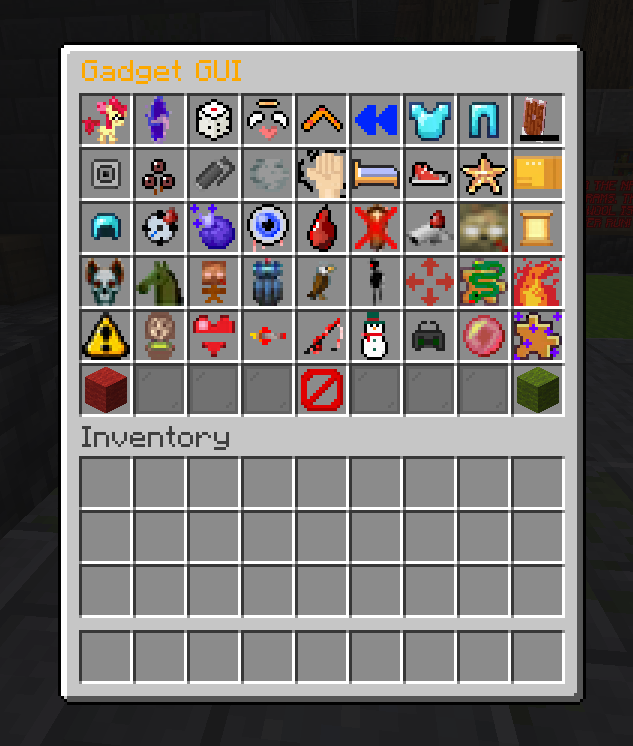
Fig. 7 Example of using the gadget GUI to get specific gadgets#
Retrieving an Ability#
To retrieve a specific ability, run the /murder ability retrieve <id>, where /murder ability retrieve-all command to just get all abilities at once.
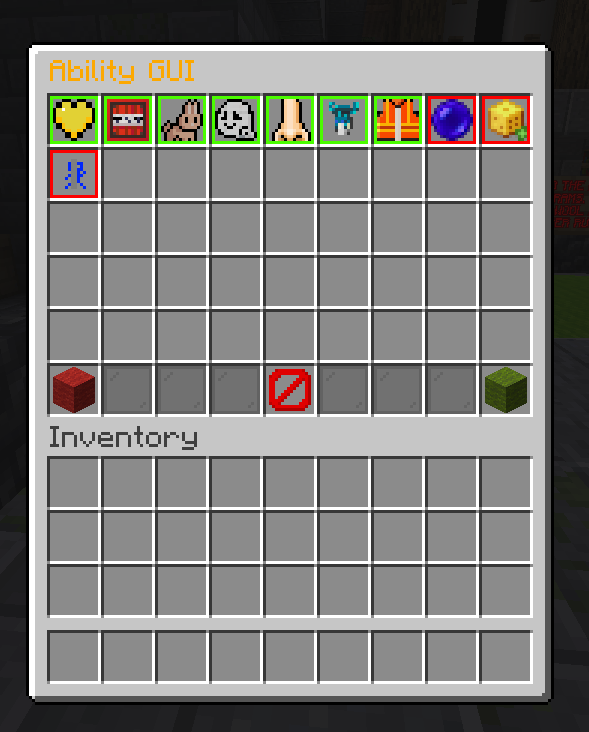
Fig. 8 Example of using the ability GUI to get specific abilities#